Help & Documentation
Everything you need to know about using MixReview.
1. Security
Your audio is confidential. MixReview is built so that only the people you explicitly invite can access your files — and you stay in control at all times.
2. Inviting Clients
You can give clients secure, view-only access to a specific album. Each client gets a personal access code. An email address is optional, a username alone is enough. No account or password needed.
How to invite a client
- Open the album you want to share.
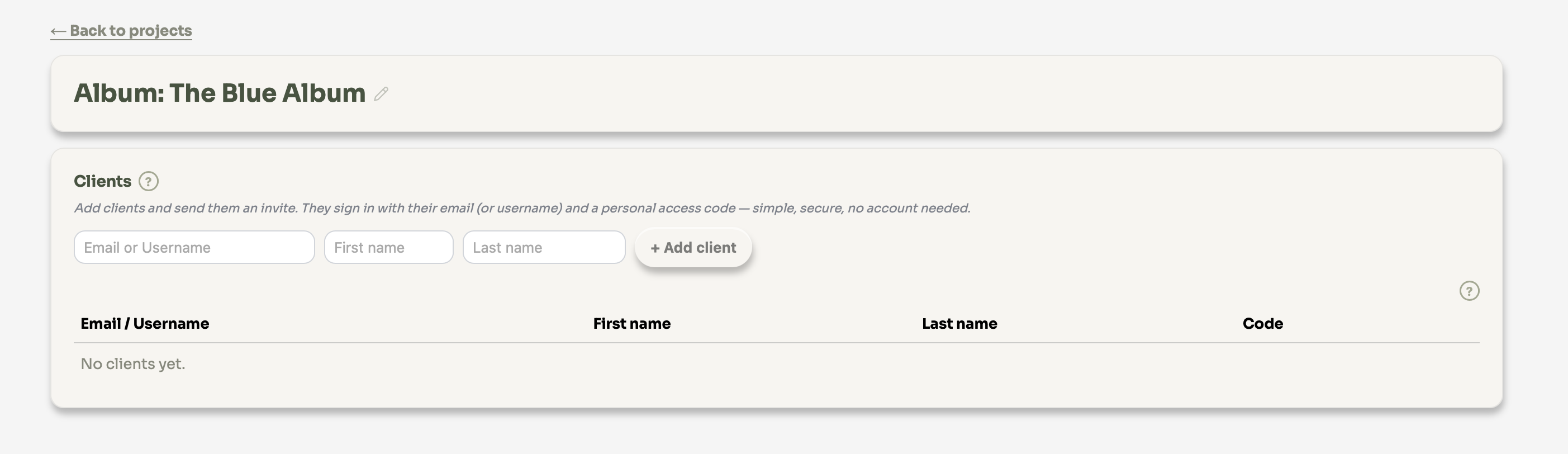
- Scroll to the "Clients" section at the top of the album page.
- Enter a username for the client, along with first and last name. An email address is optional.
- Click "+ Add client".
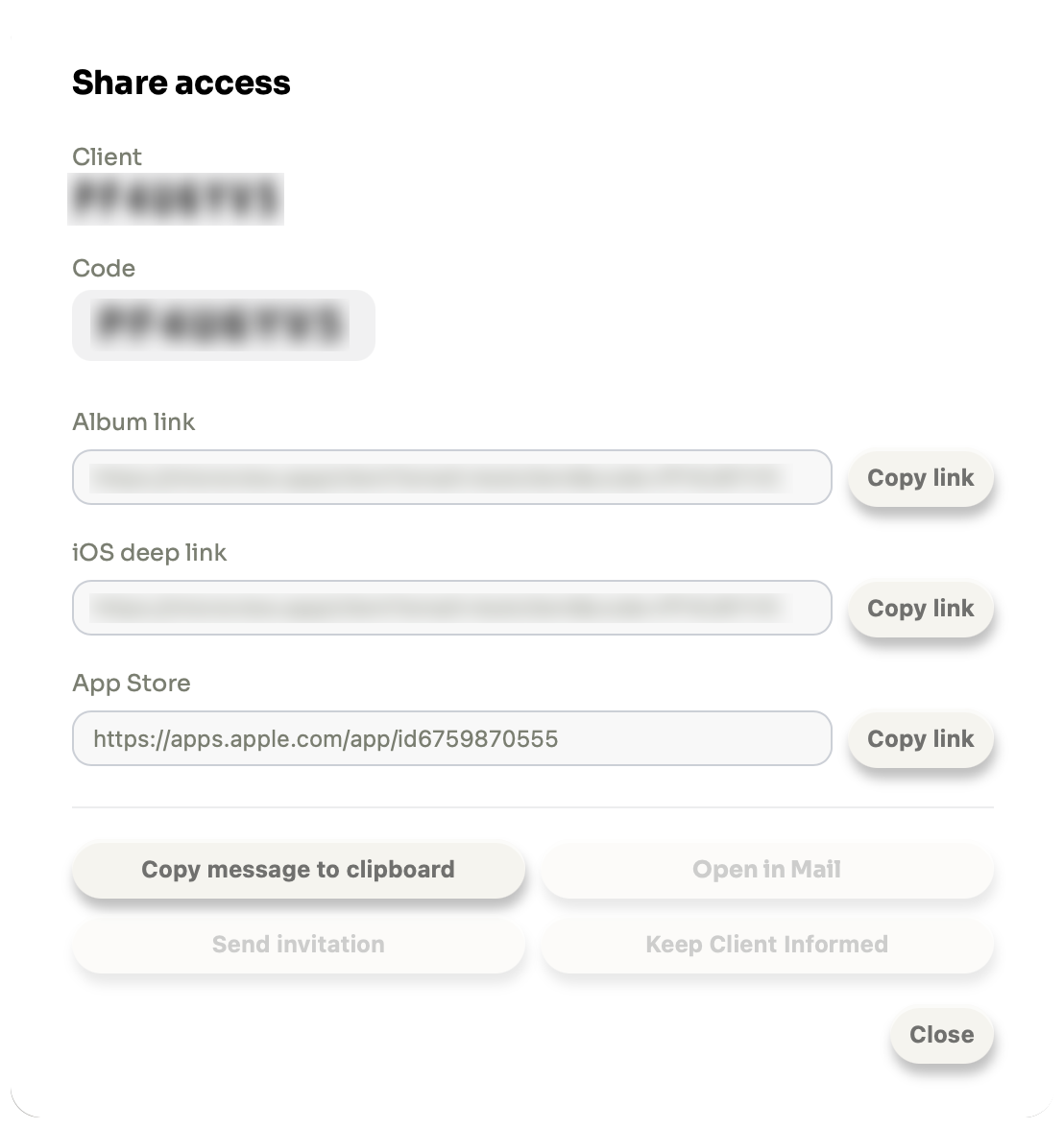
- Share the access link: click the "Share" button to open the share modal. From there you can copy a ready-made invite message, open a pre-filled draft in your mail client, or send the invitation directly via MixReview (email required).
- The client opens the link and signs in with their username or email and the personal access code. No account needed.
What clients can and cannot do
Clients can:
- Listen to all mix variants (Stereo, Dolby Atmos (Binaural Downmix), Apple Spatial)
- Switch between variants and track versions
Clients cannot:
- Download any audio file
- See other albums or projects
- Change any settings
Managing existing clients
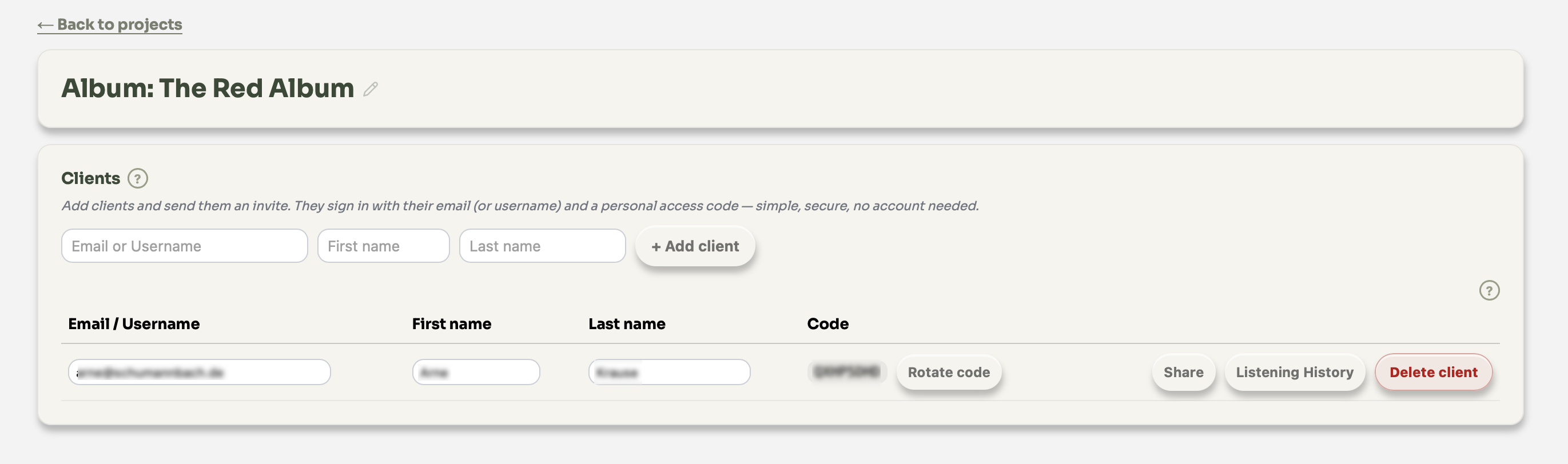
Once a client has been added, their row shows the following actions:
- Rotate code: Generates a new access code and invalidates the old one. Use this if you want to block access without deleting the client entirely.
- Share: Opens a modal with the access links and additional actions for this client (see below).
- Delete client: Removes the client and invalidates their code permanently.
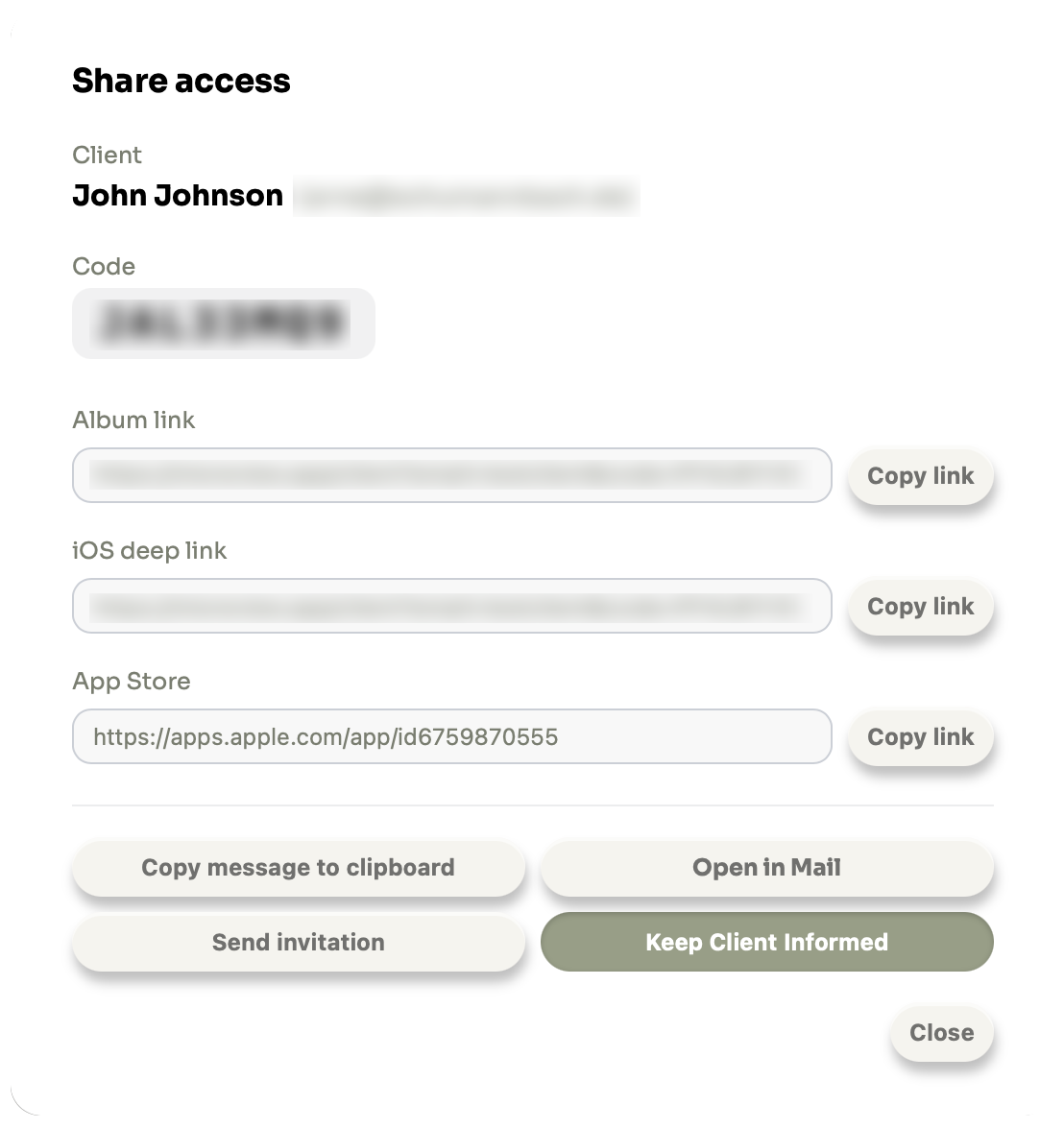
The Share modal contains the following actions. If you added the client with a username only (no email address), the email-related actions are not available.
- Copy message to clipboard: Copies a ready-to-send invite message (including the access link and code) to your clipboard so you can paste it anywhere.
- Open in Mail: Opens a pre-filled draft in your local mail client (e.g. Apple Mail). The subject, login link, and access code are already filled in — you can add a personal message before sending. Only available if the client has an email address.
- Send invitation: Sends the invite email directly via MixReview. Only available if the client has an email address.
- Keep Client Informed: Toggle this on to automatically notify the client by email whenever you upload a new track or a new track version to this album. Toggle it off to stop notifications for that client. Only available if the client has an email address.
3. Batch Upload
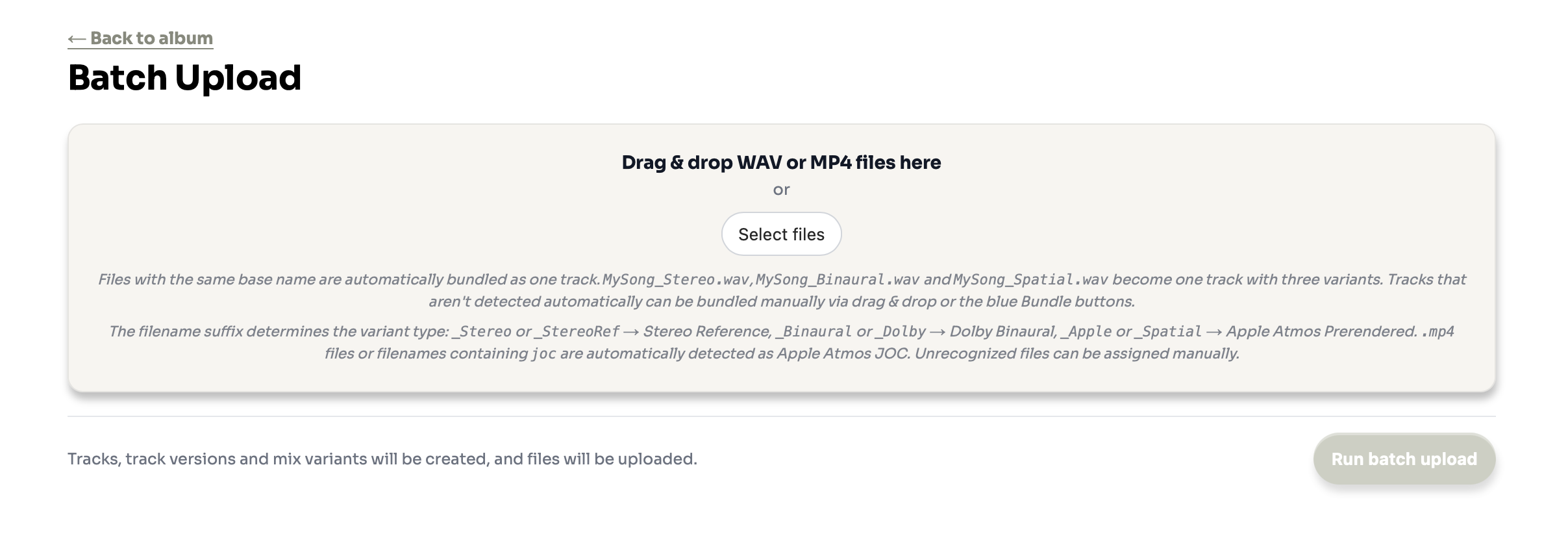
Batch upload lets you upload multiple mix variants at once. MixReview reads the filenames and automatically assigns each file to the right track and variant.
File naming convention
MixReview detects the variant from keywords in the filename. The part before the last _-separated keyword becomes the track name:
Stereo, StereoRef, Dolby, Binaural, Apple, Spatial, JOC. If a file is not recognised automatically, you can assign the variant manually using the dropdown in the bundle preview.How to batch upload
- Open an album in your dashboard.
- Click "Batch Upload" in the album.
- Drag and drop your files onto the upload area. Or click it to open a file picker and select multiple files at once (⌘+A).
- MixReview analyses the filenames and shows a preview of the assignment.
- Review the bundles and click "Upload". Progress is shown per file.
How bundling works
After dropping your files, MixReview automatically groups them into track version bundles:
- Files with the same track name are automatically bundled into one track version, e.g.
MySong_Stereo.wavandMySong_Binaural.wavbecome two variants of the same version. - The variant (Stereo, Binaural, Apple Spatial JOC) is detected automatically from the filename. The detection is smarter than simple keyword matching — it learns the naming pattern of your files.
- If a file is not recognised, it is flagged in red. Use the variant dropdown on that file to assign it manually.
- You can manually bundle groups before uploading. Drag one bundle onto another to merge them, or use the "Bundle with" buttons.
01 BlueSky V3_StereoRef.wav, 01 BlueSky V3_Dolby Atmos Binaural Downmix.wav, 01 BlueSky V3_Binaural.wav, 02 Sunrise 4424 Master V4_StereoRef.wav, 02 Sunrise V4_Stereo.wav and 02 Sunrise V4_Dolby Atmos Binaural Downmix.wav creates three bundles: 01 BlueSky V3 (Stereo Reference + Dolby Atmos (Binaural Downmix)), 02 Sunrise 4424 Master V4 (Stereo Reference only) and 02 Sunrise V4 (Stereo Reference + Dolby Atmos (Binaural Downmix)).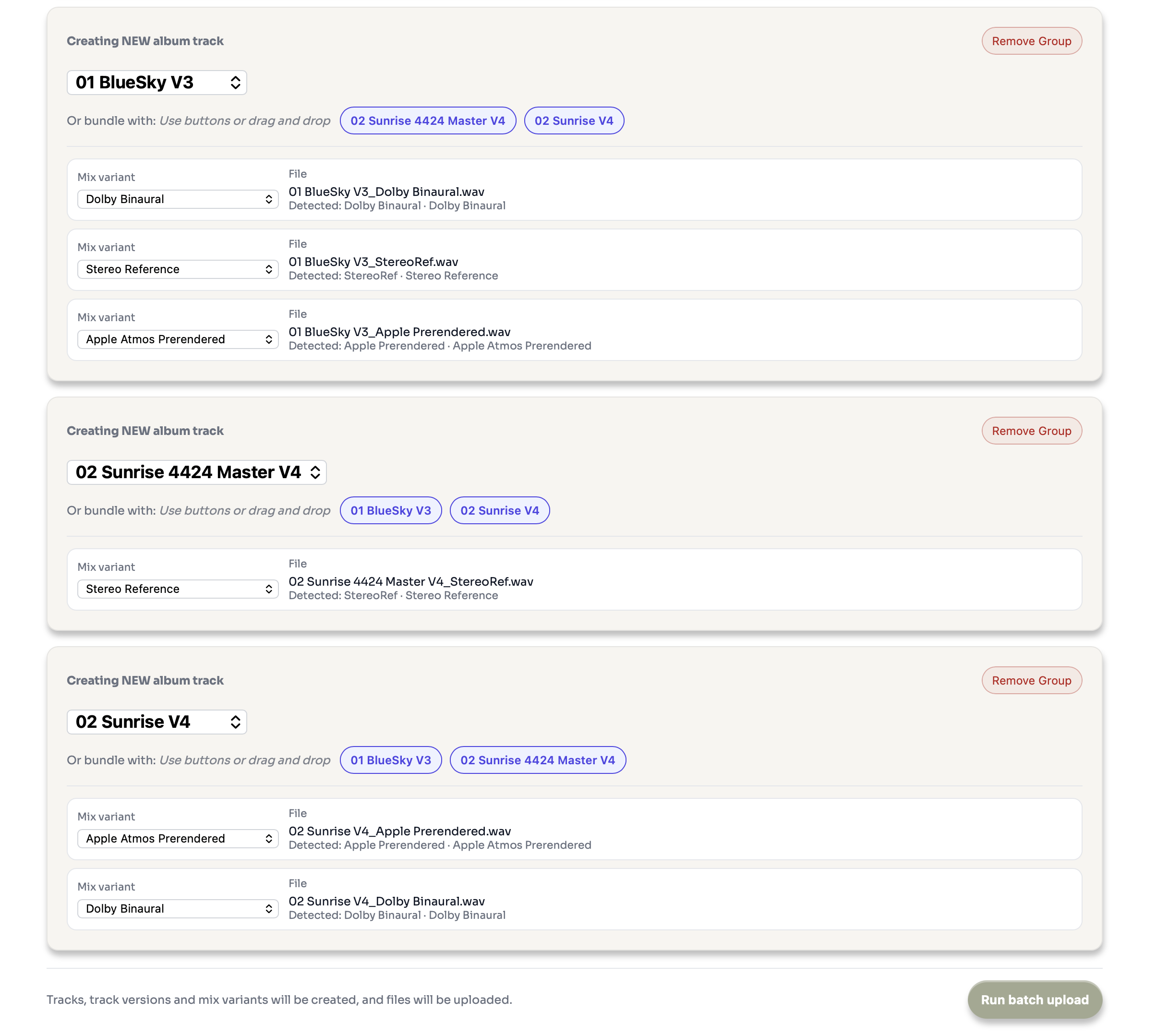
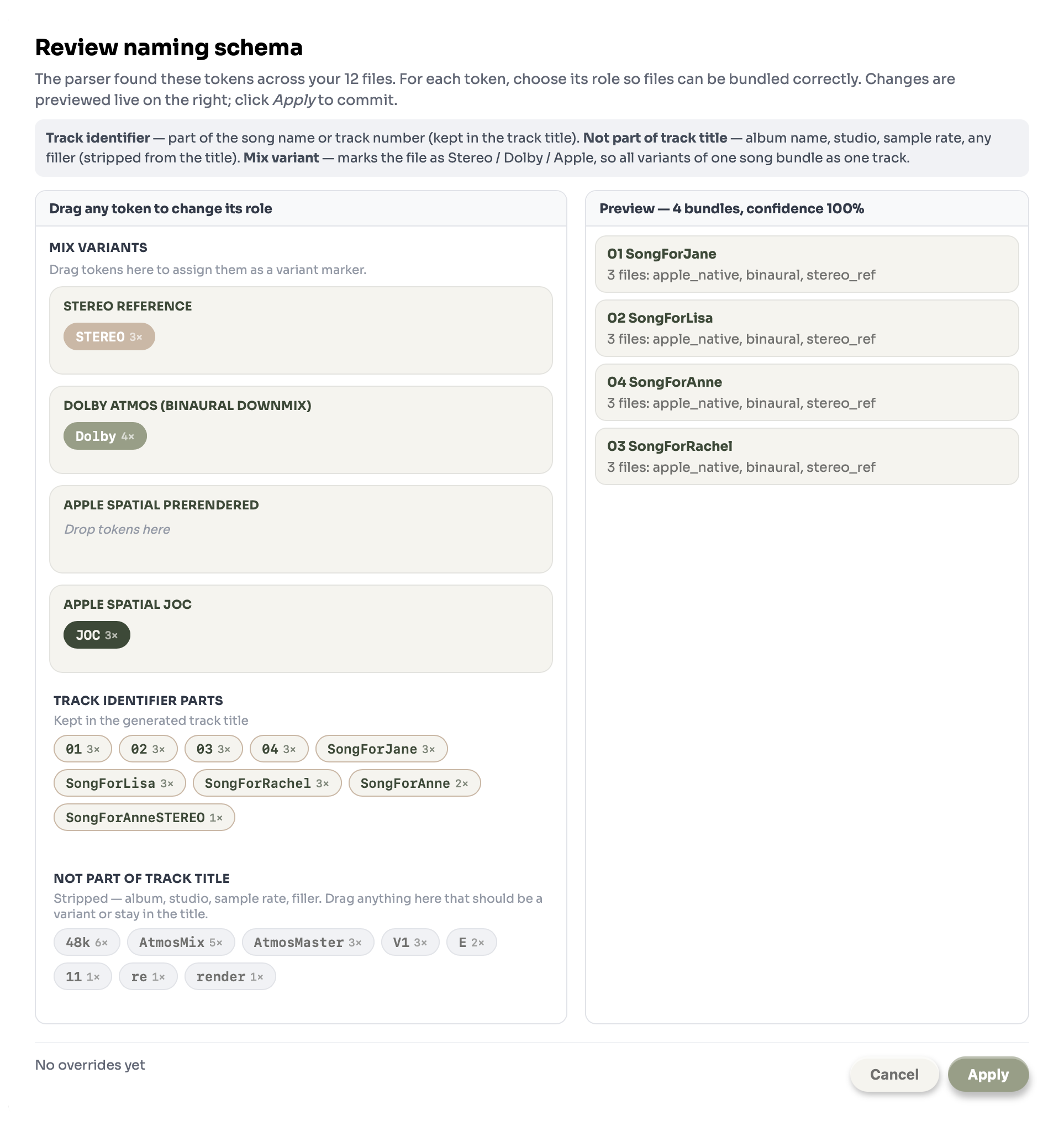
MixReview includes a custom parser that lets you review and correct how filename tokens are classified. It is a power-user feature — activate it via Customize Parser in the inline help menu (the ? button next to the Batch Upload heading).
Adding new tracks vs. new versions
Batch Upload works the same whether the album already has tracks or is empty. Each bundle either creates a new track or adds a new mix version to an existing one — depending on the filename.
- If the track name in the filename does not match any existing track, a new track is created.
- If the track name matches an existing track, a new mix version is added to that track.
New mix versions always appear at the top of the track card — the most recent version is always shown first.
Supported formats
| Variant | Format | Notes | Plan |
|---|---|---|---|
| Stereo Reference | WAV | 24-bit recommended | Free |
| Dolby Atmos (Binaural Downmix) | WAV | Binaural-rendered stereo | Basic |
| Apple Spatial JOC (MP4) | MP4 | Device rendered Apple Spatial | Studio |
4. Album View
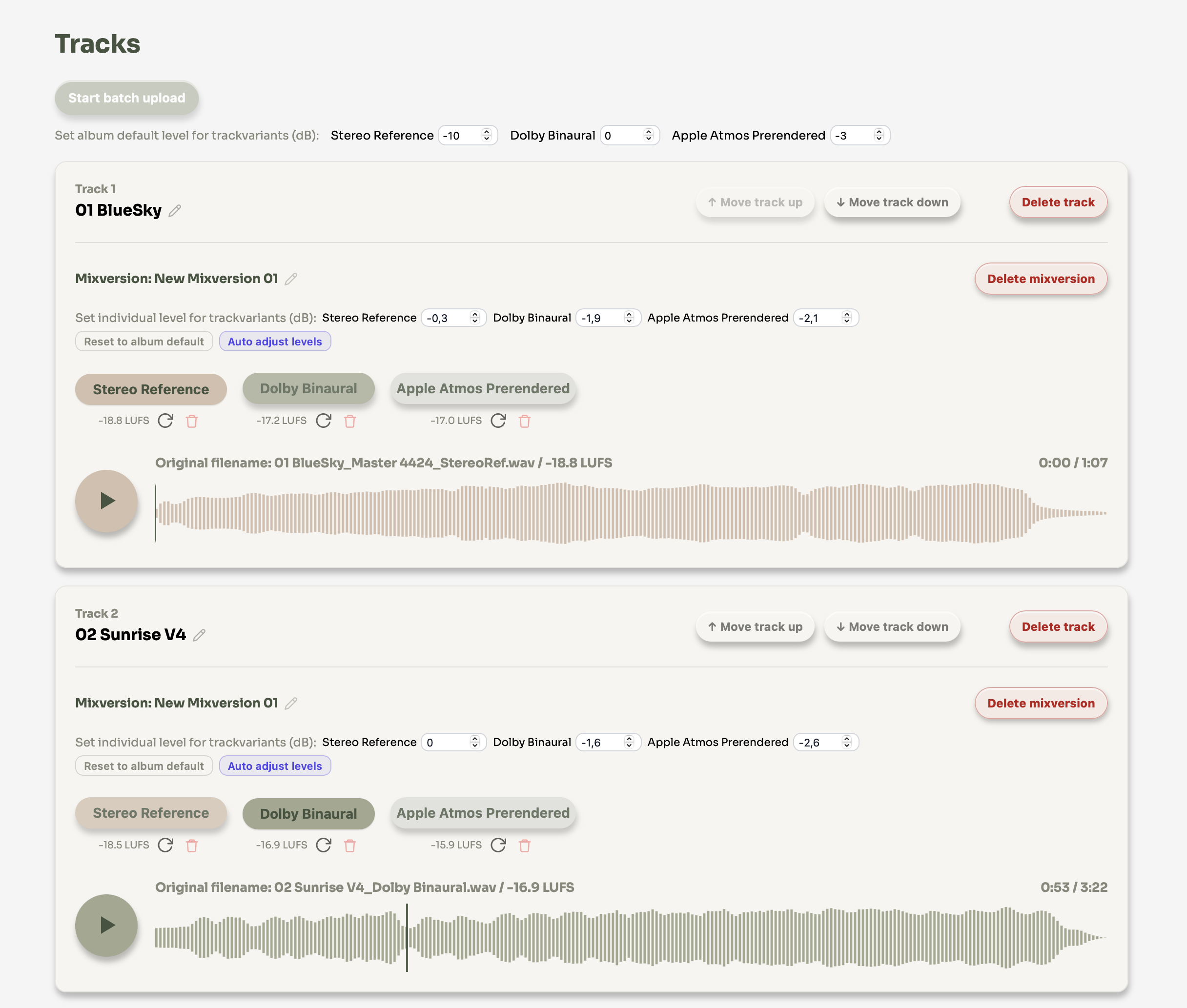
The album view is your main workspace. Here you manage tracks, mix versions, variants, and levels.
Sorting tracks
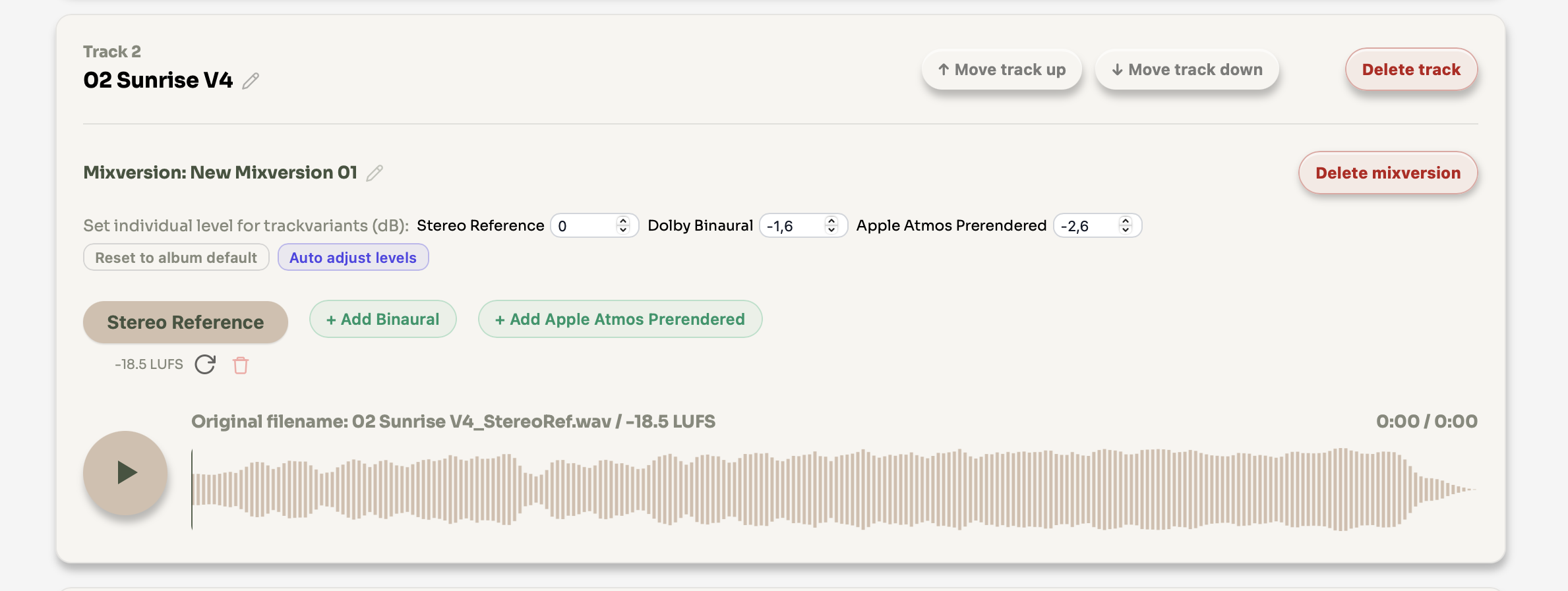
Each track has Move track up and Move track down buttons in the top right corner of the track card. Use them to reorder tracks within the album. The order is reflected immediately for clients in the player.
Renaming and deleting
- Click the pencil icon next to a track name or mix version name to rename it inline.
- Use Delete track to remove a track and all its mix versions and variants permanently.
- Use Delete mixversion to remove a single mix version (and its variants) from a track.
Level settings
Different mix variants naturally have different loudness levels. Level settings let you compensate for this so clients always hear a fair, consistent comparison, without any variant sounding louder just because of its format.
Auto Level reads the measured LUFS (integrated loudness) of each variant, measured during upload via FFmpeg, and automatically calculates the gain needed to bring all variants to the same perceived loudness. It uses the quietest variant as the reference and adjusts all others downward to match. This way no clipping occurs and no limiting is needed.
- Click Auto Level on a track version.
- MixReview calculates and fills in the gain values automatically based on the LUFS of each variant.
- You can still adjust individual values manually afterwards.
- Click "Reset to album default" to go back to the album-level settings.
Playback shortcuts
- Space bar: Start or pause playback.
- 0: Return the playhead to the beginning.
Adding, replacing or deleting individual variants
- Click the replace icon below a variant button to replace it with a new file. The LUFS value is recalculated automatically after upload.
- Click the trash icon below a variant button to delete it from the mix version.
- To add a missing variant to an existing mix version, click the green empty variant button (e.g. "+ Add Binaural").
5. Allowing Downloads
By default, your clients can only stream the audio in their browser — they cannot save the files to disk. If you want to let them download the final mixes (for example to listen offline, to forward to a third party, or to keep a copy for their archive), you can enable downloads per album.
Enabling downloads for an album
- Open your Custom Album in the dashboard.
- In the Clients card, you'll see an Allow downloads toggle on the right. Click it to enable.
- The toggle takes effect immediately. All clients of this album will see a new Select trackvariants to download button at the top of their album view on their next page load.
- Click again to disable — the button disappears for clients, no further downloads possible.
What clients see
Once you've enabled downloads, your clients can pick which variants they want and download them as a single ZIP file:
- Client clicks Select trackvariants to download in the album header. All variant buttons (the colored badges next to each mix version) get an emerald-green ring.
- Client clicks each variant they want — selected ones light up with a brighter ring + glow + soft tint. They can mix and match across tracks and versions.
- Client clicks Download N trackvariants. A confirmation modal lists every file that will be in the ZIP, with its final name.
- Client confirms — the ZIP downloads via their browser, in the background, while they can keep listening to your album in the page.
How files are named in the ZIP
Each file in the ZIP is named like this:
<original filename> — <variant label in lowercase>.<ext>
Example: if you uploaded MyMix_v3.wav and labeled the slot Drums, the file in the ZIP will be MyMix_v3 — drums.wav. The variant suffix is always appended, even if the original name already contains it — this keeps the names predictable for the client and prevents collisions when they pick multiple variants of the same track.
Privacy & security
- The download URL does not expose any storage paths — the files are served through the same encrypted streaming infrastructure as playback.
- Downloads are tied to the client's session: only logged-in clients of the album can trigger them.
- Every download attempt is logged (which client, which variants, success or failure). You don't see this in the dashboard yet, but it's available for audit and support if anything goes wrong.
6. Plan, Storage & Account
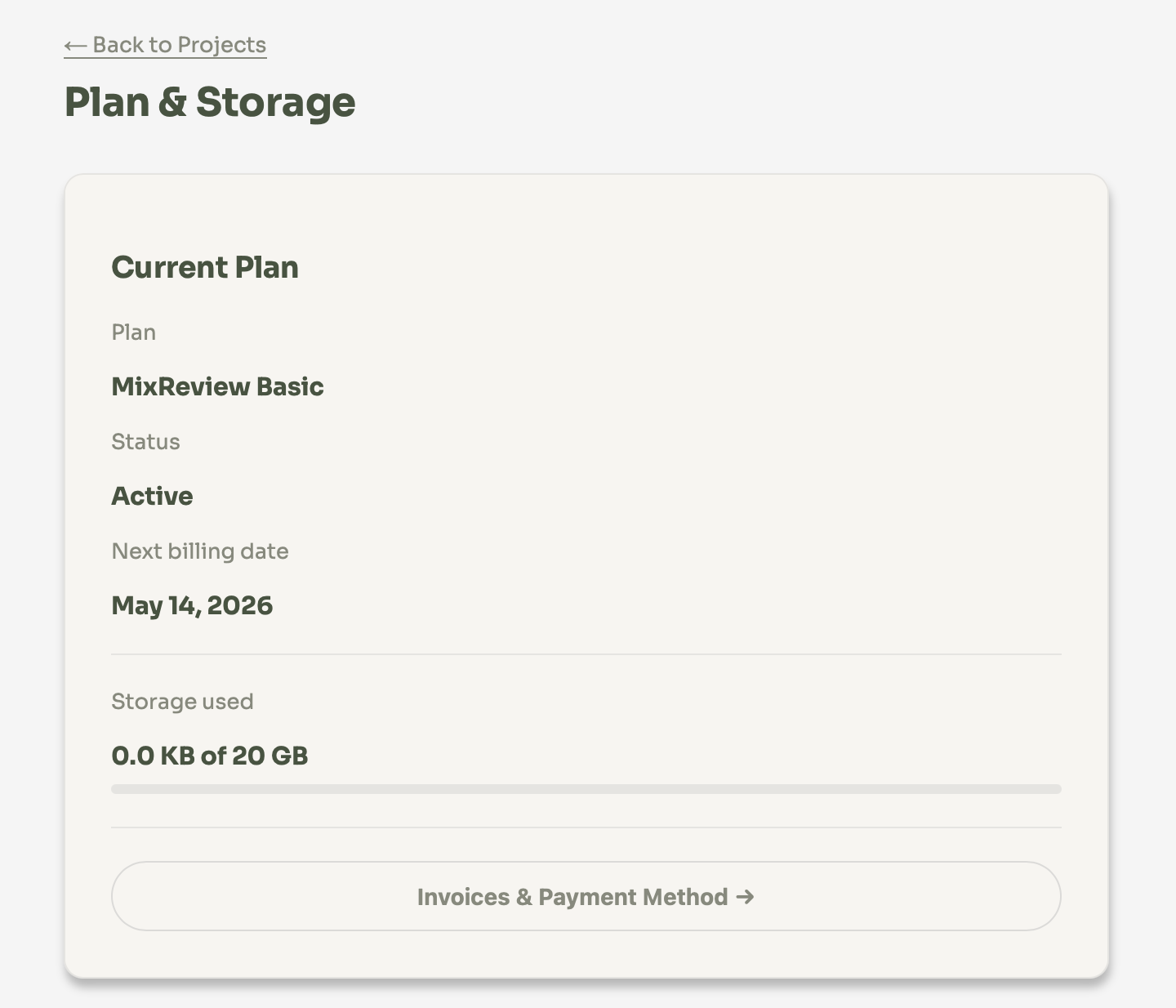
You can view and change your plan anytime under Plan & Storage in the dashboard. Your current storage usage, next billing date and available plans are all shown on one page.
Switching plans
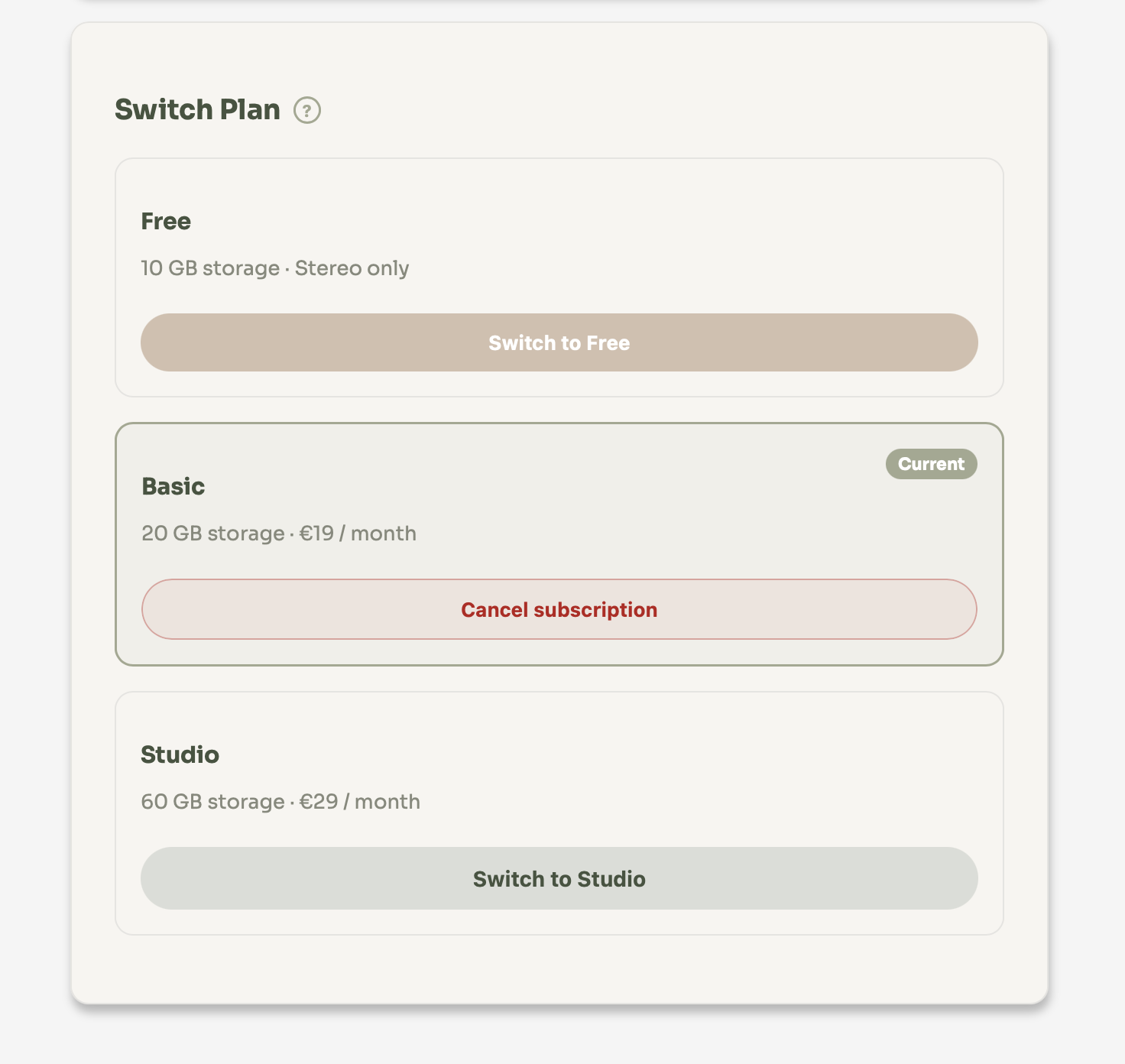
- Upgrades take effect immediately.
- Downgrades are scheduled for the end of the current billing period. You can cancel a scheduled downgrade at any time before it takes effect.
What happens when you downgrade
If your current storage usage exceeds the limit of the new plan, a prompt will appear asking you to free up space before the downgrade takes effect. You will need to delete tracks or albums until your usage is within the new limit.
Variant visibility per plan:
- Free: only one variant per track is visible to you and your clients. For Immersive albums this is the Stereo Reference; for Custom albums it is the first slot. Immersive variants (Dolby Atmos Binaural, Apple Spatial JOC) and additional Custom variants are hidden.
- Basic: Stereo Reference and Dolby Atmos Binaural for Immersive albums. Full 4-slot access for Custom albums.
- Studio: all of Basic, plus Apple Spatial JOC (MP4) for Immersive albums. Full 4-slot access for Custom albums.
Hidden variants are only filtered from the view — the underlying files are not touched. Upgrade at any time and they reappear immediately.
Deleting your account
You can delete your account at any time from the Projects page. In accordance with GDPR Art. 17 (right to be forgotten), all personal data and files are irrevocably removed from our systems.
- Open the Projects page in your dashboard.
- Click "Delete account" in the top-right corner of the page.
- Read the confirmation dialog carefully.
- Type "delete" in the confirmation field to enable the button.
- Click "Delete account" to confirm. You will be signed out immediately.
7. iOS App
MixReview is available as a native iOS app, optimized for the best possible listening experience, especially for spatial audio formats.
Why use the iOS app?
Download
⬇ Download on the App StoreRequires iOS 17.2 or later. Same login as your MixReview web account.
Help version 0.4.64